Wi-Fi setup
From firmware 5.0.0, the wearables and the Pro Kit upload their data over Wi-Fi. Before first use you connect them once to your Wi-Fi network. You only need to do this again if your network name or password changes, or if the devices move to a different location.
The steps depend on the hardware you received. Did you get a Pro Kit with wearables? Then you only set up the Pro Kit; it passes the network on to all docked wearables automatically. Did you get loose wearables (without a Pro Kit)? Then you set up each wearable once, individually. Both situations use the same setup page and are covered below.
Before you start
What you need
- The name and password of your Wi-Fi network. The devices use the 2.4 GHz band; most networks support this.
- A smartphone, tablet or laptop with Wi-Fi.
Every SpineWise device broadcasts its own temporary setup network. The name tells you exactly which device it is:
| Network name | Device |
|---|---|
SpineWise ProKit 7C3F |
The Pro Kit (the code is unique per Pro Kit) |
SpineWise Belt 095 |
The belt wearable of set 095 |
SpineWise Neck 095 |
The collar wearable of set 095 |
For wearables the number matches the set number on your devices. Setup networks have no password. They stay available (for a wearable: as long as it is charging), so you can always return to the setup page to check the status or switch to another Wi-Fi network.
You have loose wearables (no Pro Kit)
Repeat these steps for each wearable.
- Plug the wearable in with the USB-C cable. The setup network is only active while the wearable is charging. The LED starts blinking blue: the setup network is active.
- On your phone or laptop, open the Wi-Fi settings and connect to the wearable's network, for example
SpineWise Belt 095. - Open a browser and go to
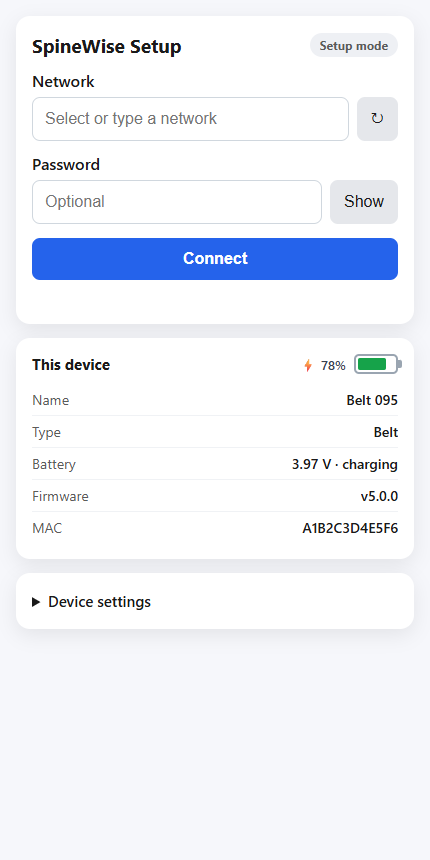
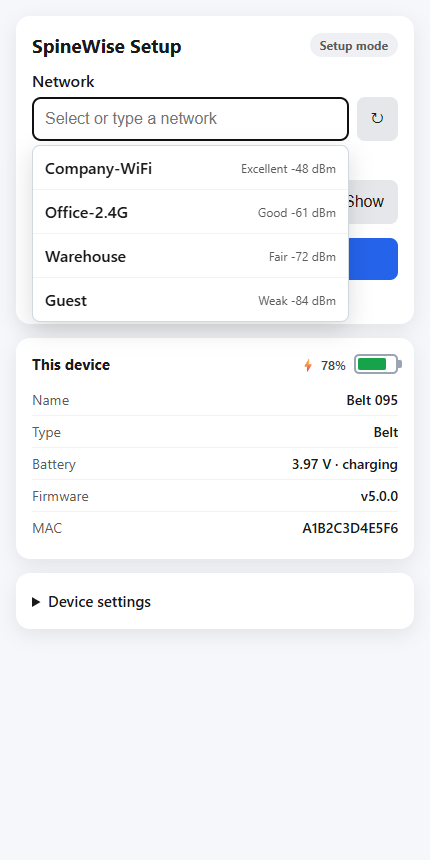
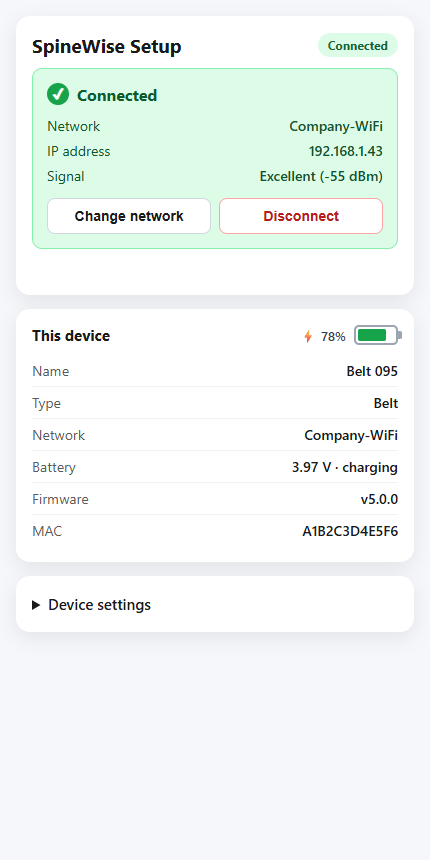
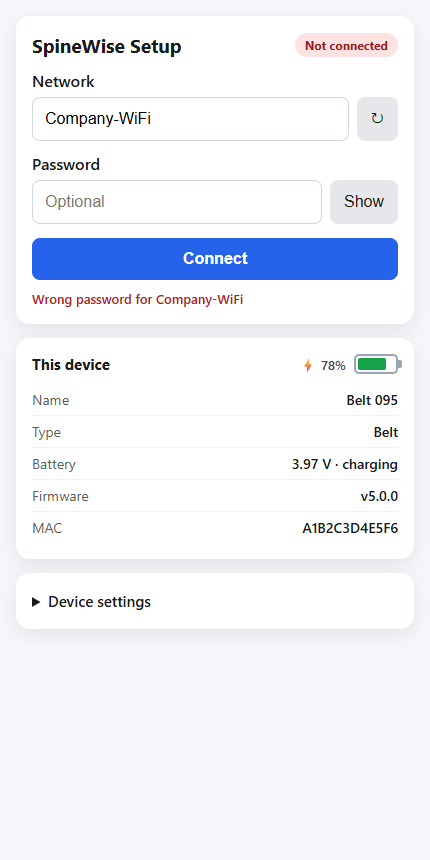
http://192.168.4.1. The SpineWise setup page appears. - Choose your Wi-Fi network from the list, enter its password and press Connect.
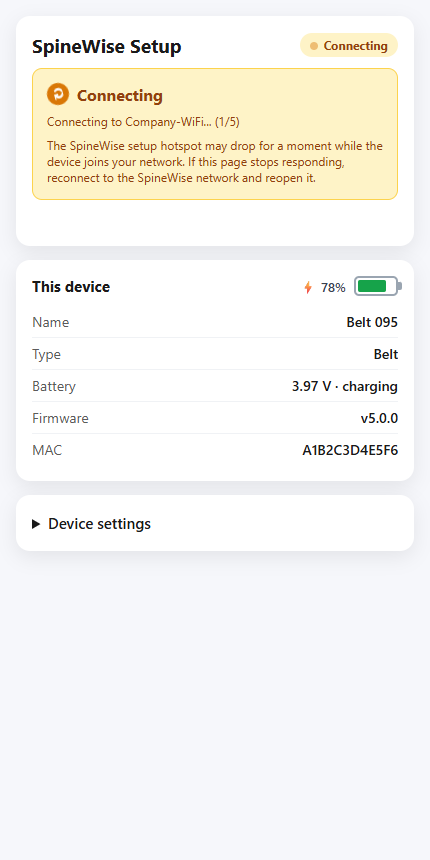
- The LED breathes blue while connecting. When it turns solid green, the wearable is connected. Done.
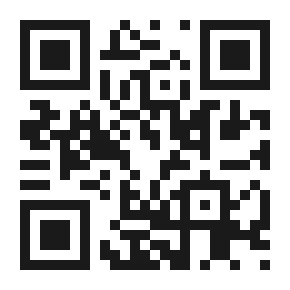
http://192.168.4.1.
Points of attention
- Your phone may warn that the setup network "has no internet". That is normal: the setup network only serves the setup page. Stay connected to it during setup.
- Android can be stubborn here. If you get the prompt "This network has no internet access. Stay connected?", choose Stay connected (if there is a "Don't ask again for this network" option, you can tick it). If only a notification appears in the notification bar, open it and confirm you want to stay connected. Without that confirmation, Android drops the network again after a few seconds.
- If your phone keeps switching back to mobile data or another Wi-Fi network, try these in order:
- Turn off mobile data temporarily and reconnect to the
SpineWise ...network. - In the Wi-Fi settings, temporarily disable options like "Switch to mobile data automatically" or "Smart network switch" (the name varies per brand).
- Make your phone forget the network and reconnect, so the internet-access prompt appears again and you can confirm it.
- Turn off mobile data temporarily and reconnect to the
- If it really won't work on your phone, simply use another device: a different smartphone, a tablet, or a laptop/PC with Wi-Fi. On a laptop, connect to the
SpineWise ...network and browse tohttp://192.168.4.1; laptops are usually less strict about networks without internet.
You have a Pro Kit with wearables
You enter your Wi-Fi network once on the Pro Kit. Every wearable in the dock picks it up automatically; you never set up the wearables themselves.
- Place the wearables in the Pro Kit (up to 6) and make sure the Pro Kit is powered. The LEDs blink blue: the setup network is active.
- On your phone or laptop, connect to the Pro Kit's network, for example
SpineWise ProKit 7C3F. - Open a browser and go to
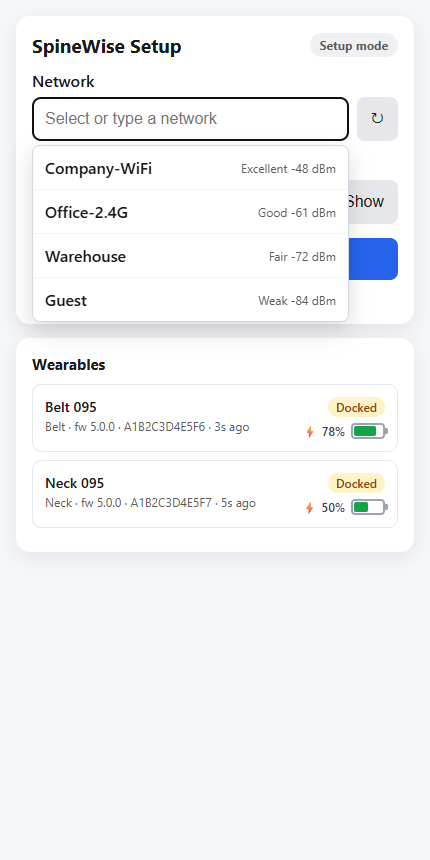
http://192.168.4.1. The SpineWise setup page appears. - Choose your Wi-Fi network from the list, enter its password and press Connect.
- The page shows each wearable in the Wearables list with its name, battery and status. A wearable goes from Docked to Credentials sent to Online. When every wearable shows Online and the LEDs turn solid green, everything is done.
http://192.168.4.1.
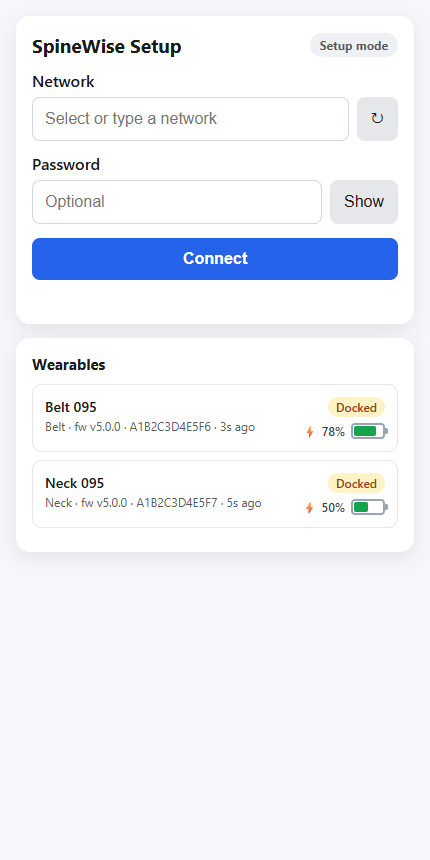
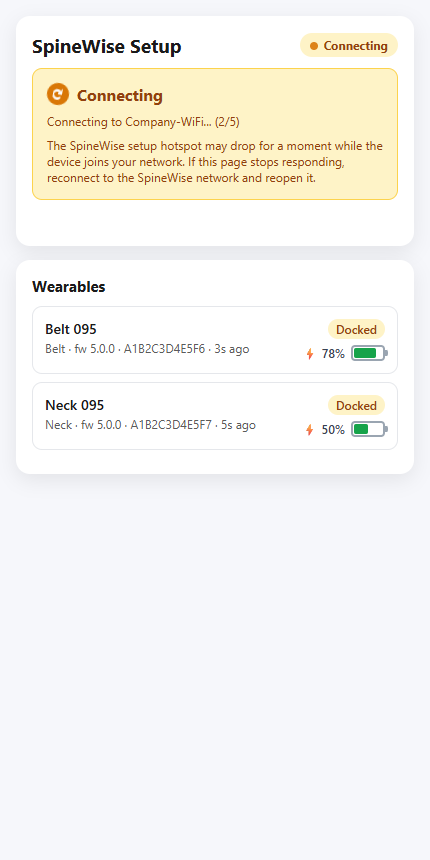
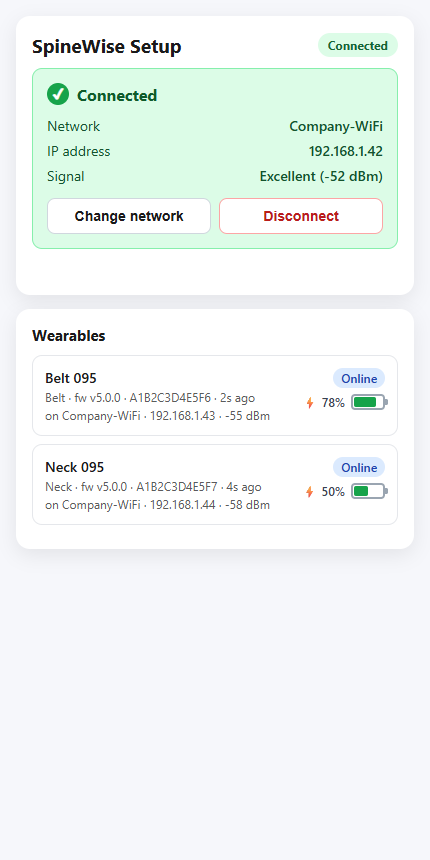
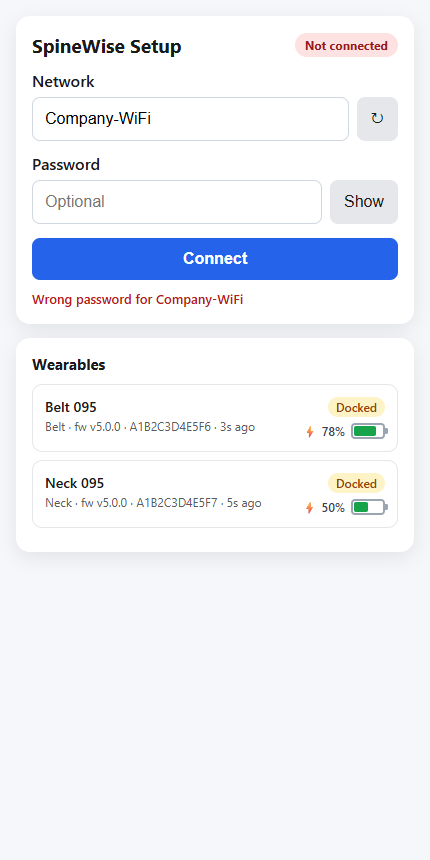
Wearables that are docked later automatically receive the network from the Pro Kit as well; you do not need to repeat the setup for them.
LED signals during setup
The same colours apply to the wearable LED and the Pro Kit slot LEDs:
| LED | Meaning |
|---|---|
| Blinking blue | Setup network active, waiting for your input |
| Breathing blue | Connecting to your Wi-Fi network |
| Solid green (30 seconds) | Connected successfully; afterwards the LED shows the normal charging signal (breathing green while charging, solid green when full) |
| Double red pulse | Connection failed, see troubleshooting |
Troubleshooting
I don't see the SpineWise network
- A wearable only broadcasts its setup network while charging. Plug it in with the USB-C cable and wait a few seconds.
My network is not in the list
- Press Refresh on the setup page.
- Check that your network broadcasts on 2.4 GHz. Networks that are 5 GHz only are not visible to the devices; most routers offer both.
The setup page does not load at 192.168.4.1
- Check that you are still connected to the
SpineWise ...network. Some phones switch back to a known network by themselves. - Turn off mobile data temporarily and try again.
The LED gives a double red pulse
- The password was probably incorrect. After about 10 seconds the device automatically returns to setup mode (blinking blue): go back to
192.168.4.1and re-enter the password. - If it keeps failing, check whether the network uses a captive portal or company login (for example a guest network with a login page). The devices cannot connect to such networks; use a regular Wi-Fi network with a password.
The Wi-Fi network at the location has changed
- Simply run the setup again. The setup network is always available (for a wearable: while charging; for the Pro Kit: whenever it is powered), also when the device is already connected. Open the setup page, press Change network and pick the new network.