Connected devices
On the home screen you see all connected wearables. For each wearable you are shown the following information:
- The position where the wearable should be attached: "belt" or "collar"
- The set number the wearable belongs to
- The battery percentage
- The assigned person
By default, each set is labelled Person 1, Person 2, and so on. You can change these names to the name of the person wearing the wearable.
If the position shown for a wearable in the desktop app does not match the actual attachment position, you can correct this manually.
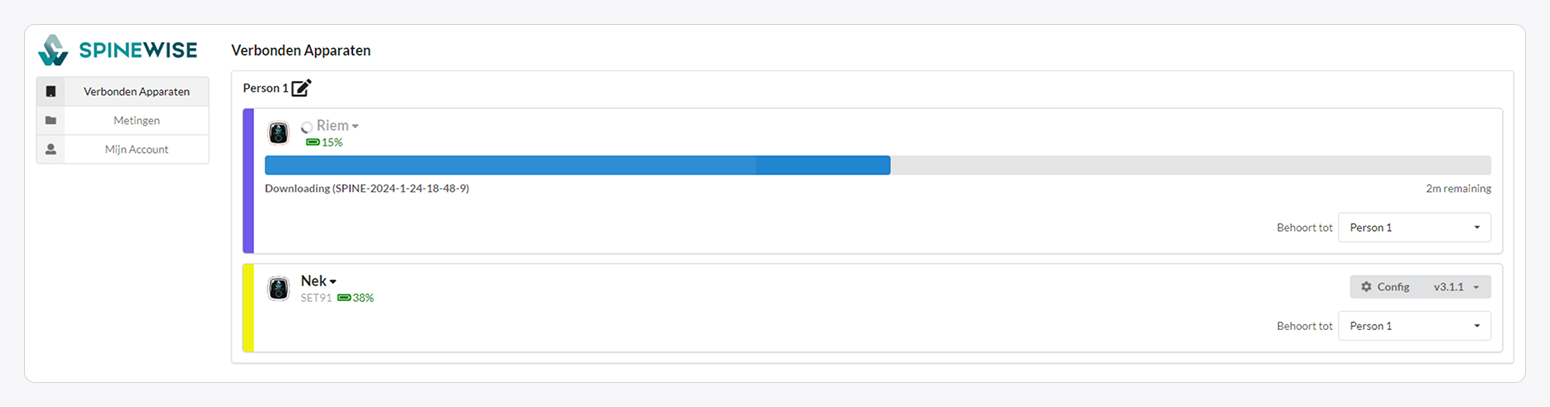
The wearables are not shown in the Pro Kit application when they are connected to the computer.
For the wearables to work properly, a driver must be installed. This is normally installed automatically, but in some cases it may fail.
If this happens, you can install the driver manually:
-
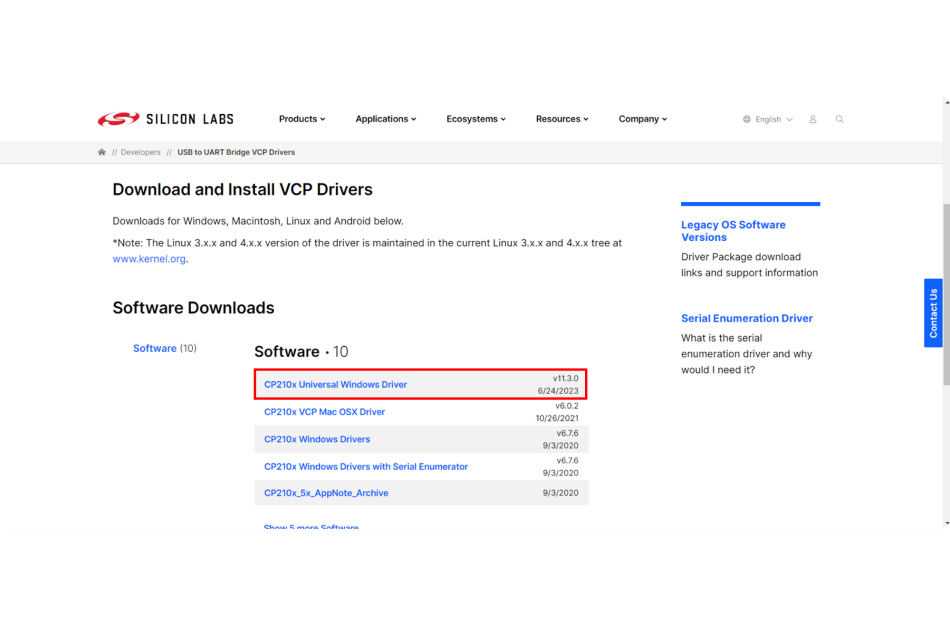
Download the driver
- Download the 'Universal Windows Driver'.
- Save the file on your computer.
-
Extract the file
- Right-click the downloaded zip file.
- Choose Extract all and select a folder.
-
Install the driver
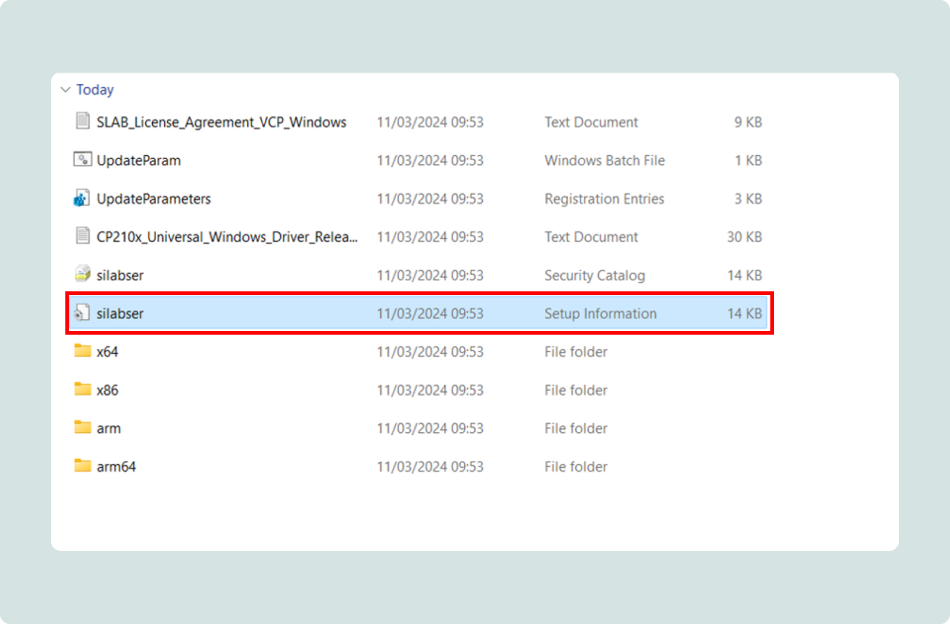
- Open the extracted folder.
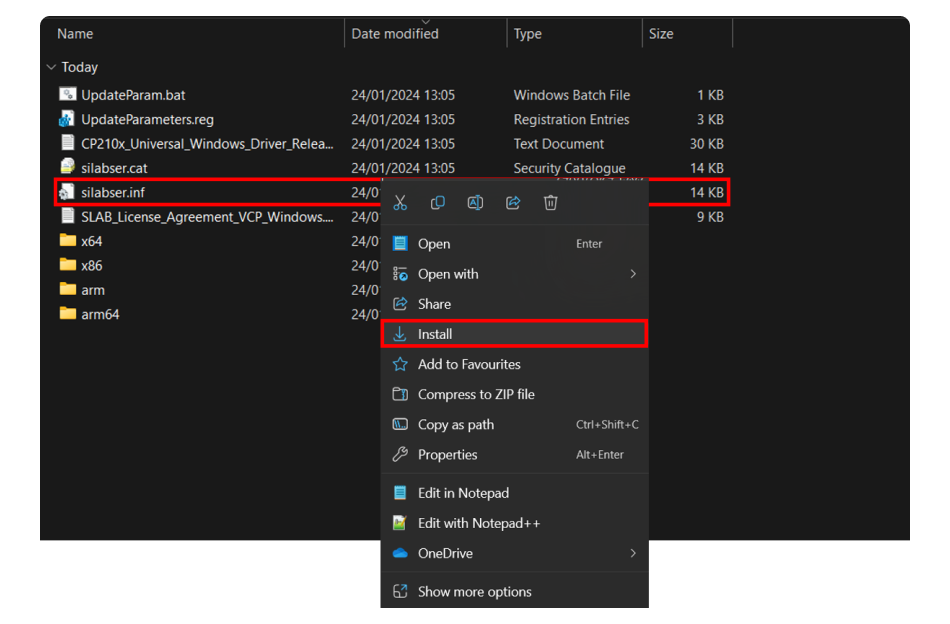
- Find the file silabser.inf.
- Note: sometimes file extensions (such as .inf) are not shown. You can recognise the correct file by its gear icon.
- Right-click silabser.inf and choose Install.
- Follow the steps in the installer.
-
Check the installation
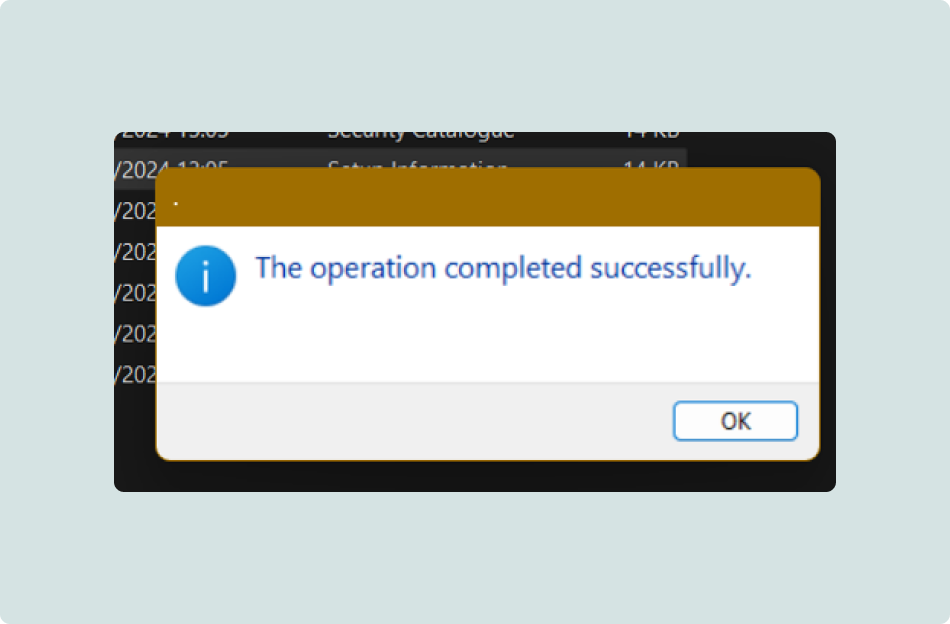
- If the installation is successful, a confirmation screen appears.
File cannot be uploaded
An error can occur when uploading a file that was actively used for less than 5 seconds. These files are not used for further analysis.
It is important to connect the wearables to the Pro Kit App regularly. This is also the moment when the time is synchronised. Once the battery is empty, the wearable "forgets" the time and the date is reset to 01/01/2001.
Downloading measurements from wearables & analysis
The wearables store calibrated measurements locally. This data can only be analysed after it has been downloaded from the wearable.
Important: only the belt wearable stores data. Data can only be downloaded from this wearable.
By default, the download happens automatically. You can disable this automatic behaviour via the Settings menu.
In addition, the app offers the following options:
- Pause the download temporarily
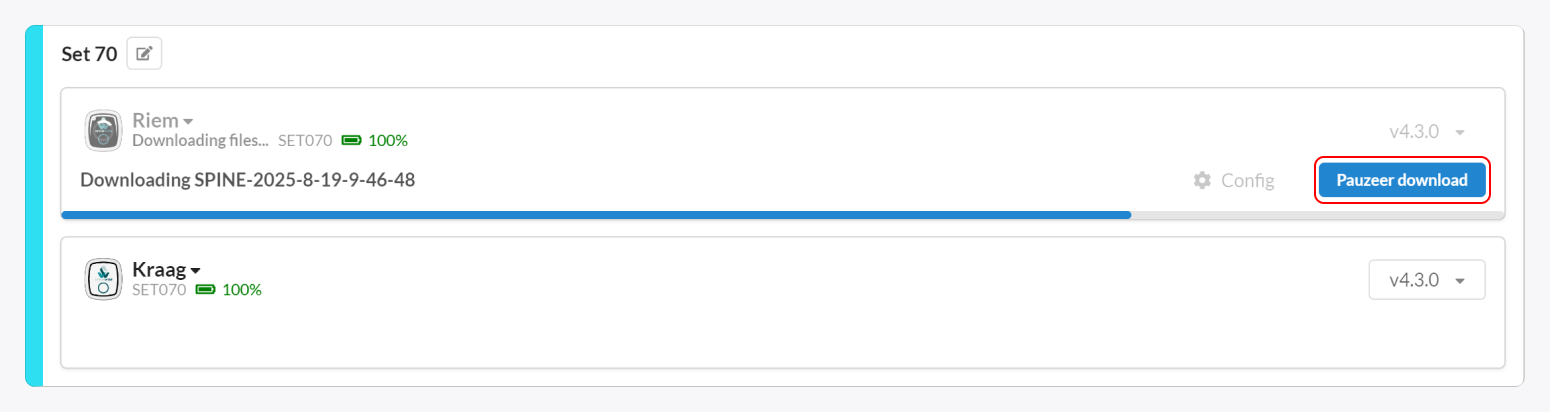
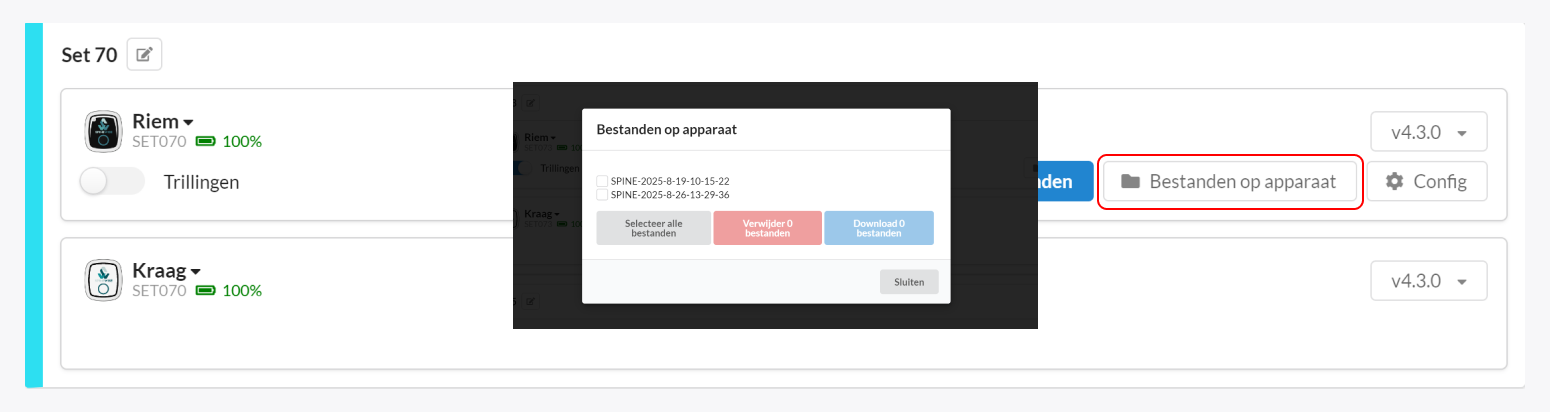
- Under Files on device you can select specific files to download or delete.
Please do not disconnect the wearables during the download.
After the measurements are downloaded from the wearable, they are automatically uploaded to the SpineWise cloud platform. The measurement is ready for analysis after a few minutes.
Configuring the belt wearable
If you want to change the wearable's settings, you can do this via Config. Here you can indicate which data you want to measure and which angles should be used for it.

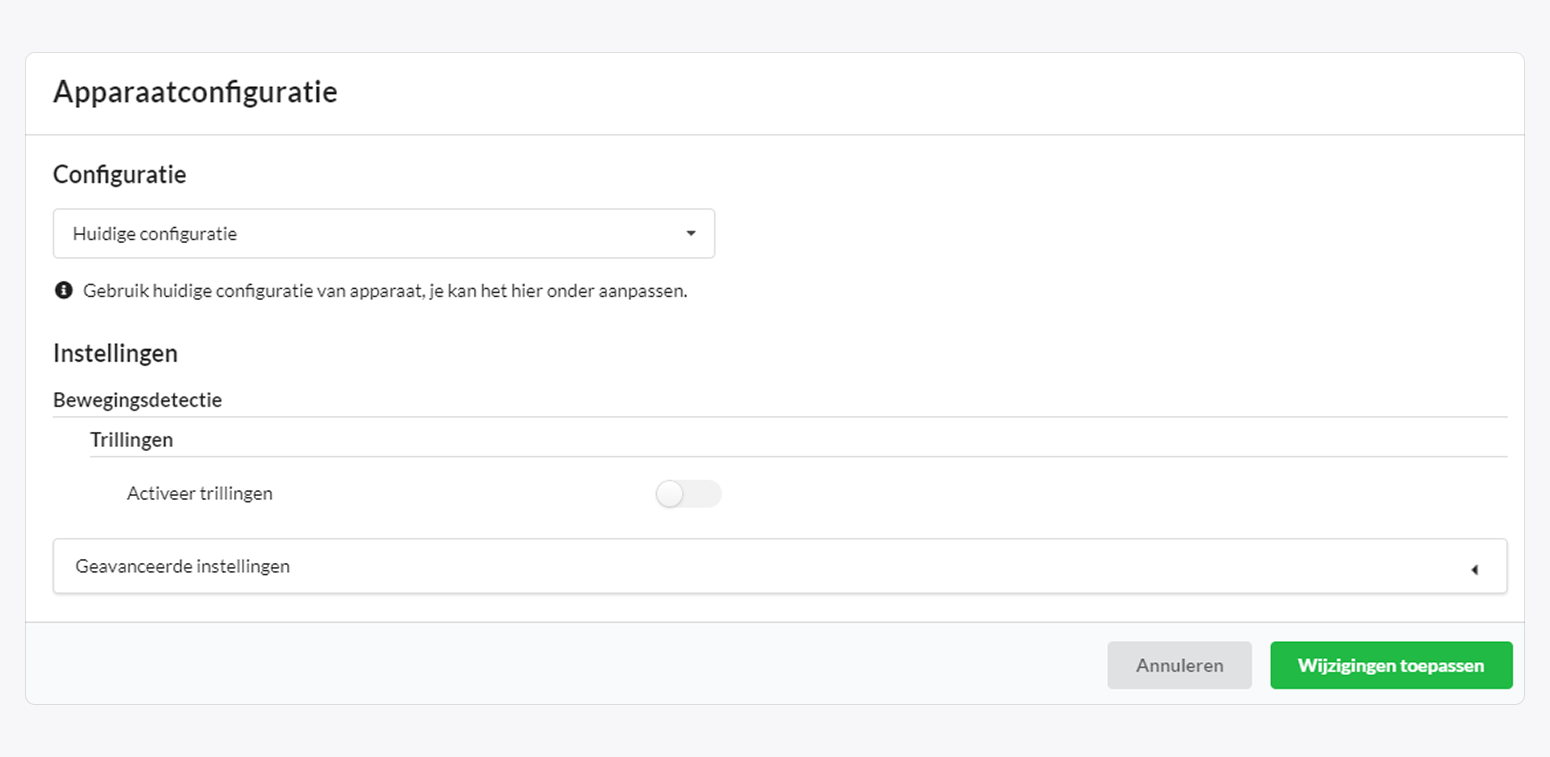
To save the configuration, press the Apply changes button. It is also possible to use a default configuration.